Migrate from Inspirit to SimInsights
The HyperSkill Onboarding Guide
Seamlessly Transition your VR/AR Learning Experiences
Welcome to the next chapter of your immersive teaching journey. Moving your simulations from Inspirit to SimInsights is a fast, simple process designed to get your students back into the virtual lab with minimal downtime.
Step 1: Create Your HyperSkill Account
Step 2: Create Your HyperSkill Account
Step 3: Explore HyperSkill’s Offerings
Step 1: Create Your HyperSkill Account
To begin, you must establish your profile in the HyperSkill Marketplace, the central hub for your training modules and 3D assets.
1. Visit the HyperSKill Portal
Navigate to marketplace.siminsights.com
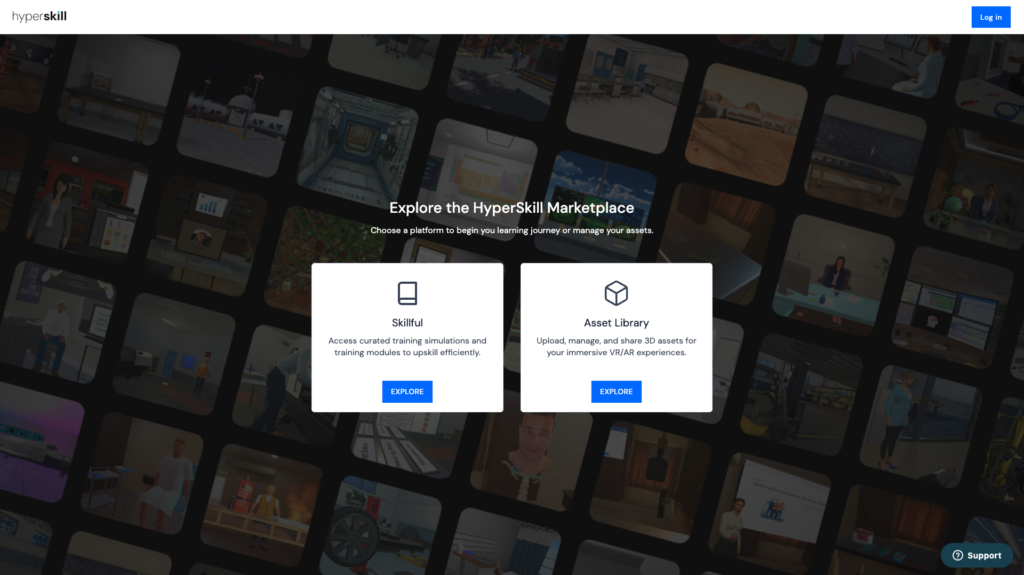
2. Access Login
Click the “Log in” button in the top right corner of the page.
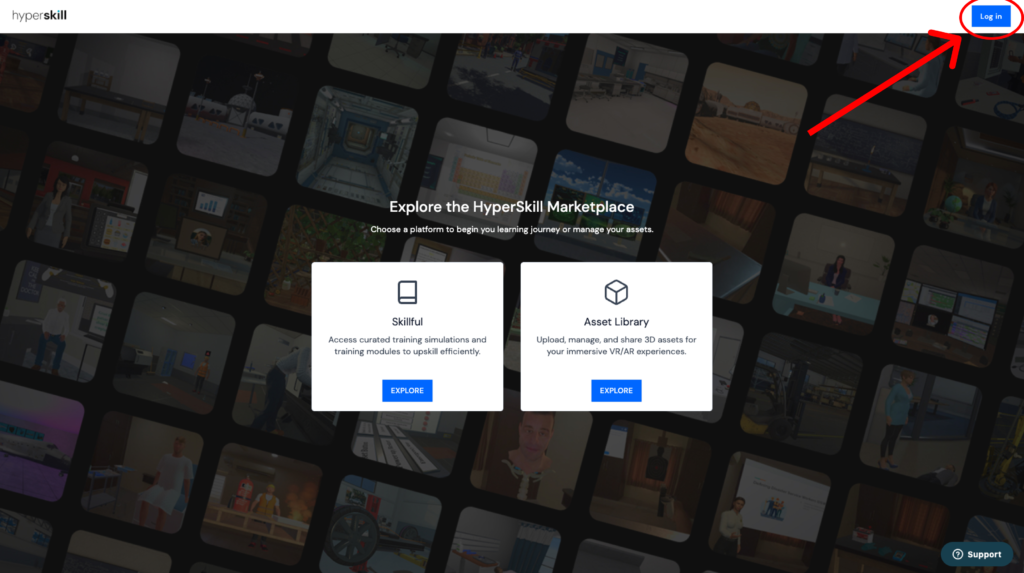
3. Registration
Select “Sign up” or use a single sign-on (SSO) option such as Google, Apple, or Clever to create an account.
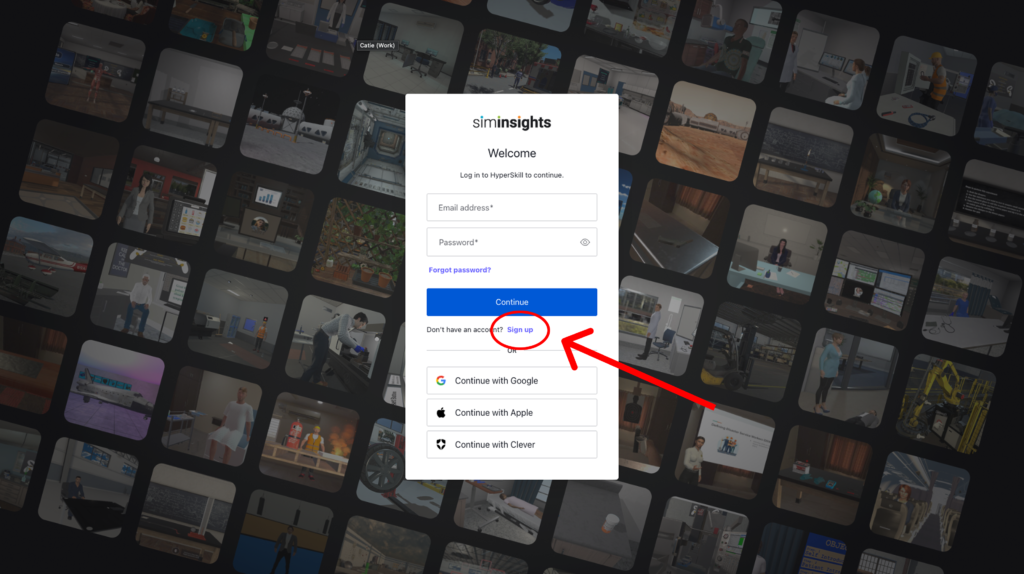
4. Institutional Alignment
We highly recommend using your institutional email address. This allows our team to identify your account quickly and expedite the activation process.
Step 2: Account Activation & Support
After you create your profile, our team handles the rest.
24-hour Activation
Accounts are typically processed and activated within one business day of creation.
Direct Support
If you encounter any issues accessing your simulations or assets, please contact support@siminsights.zendesk.com for immediate assistance.
Step 3: Explore HyperSkill’s Offerings
Once activated, you will have full access to three powerful tools designed for immersive education.
Skillful
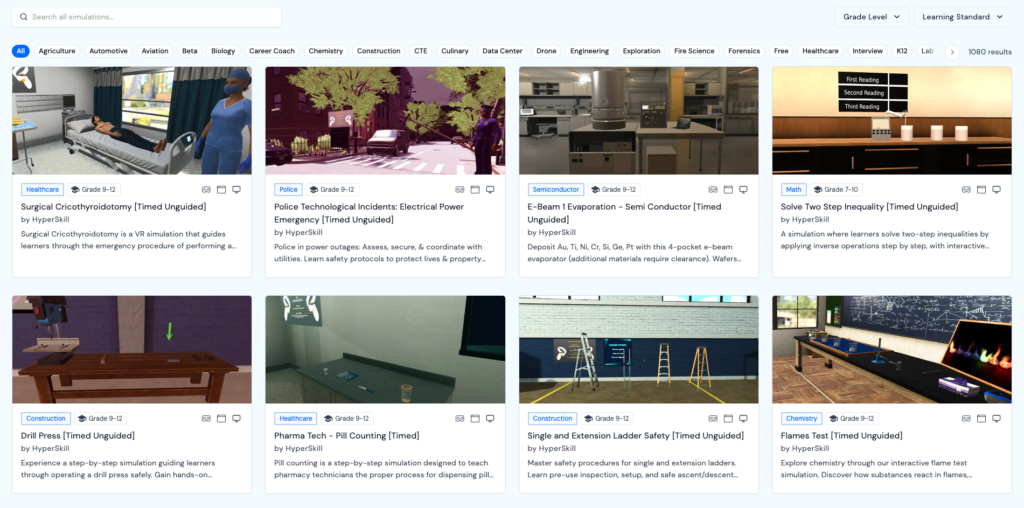
Access a library of curated training simulations and modules designed for efficient, real-world skills training.
Asset Library & No-Code Authoring
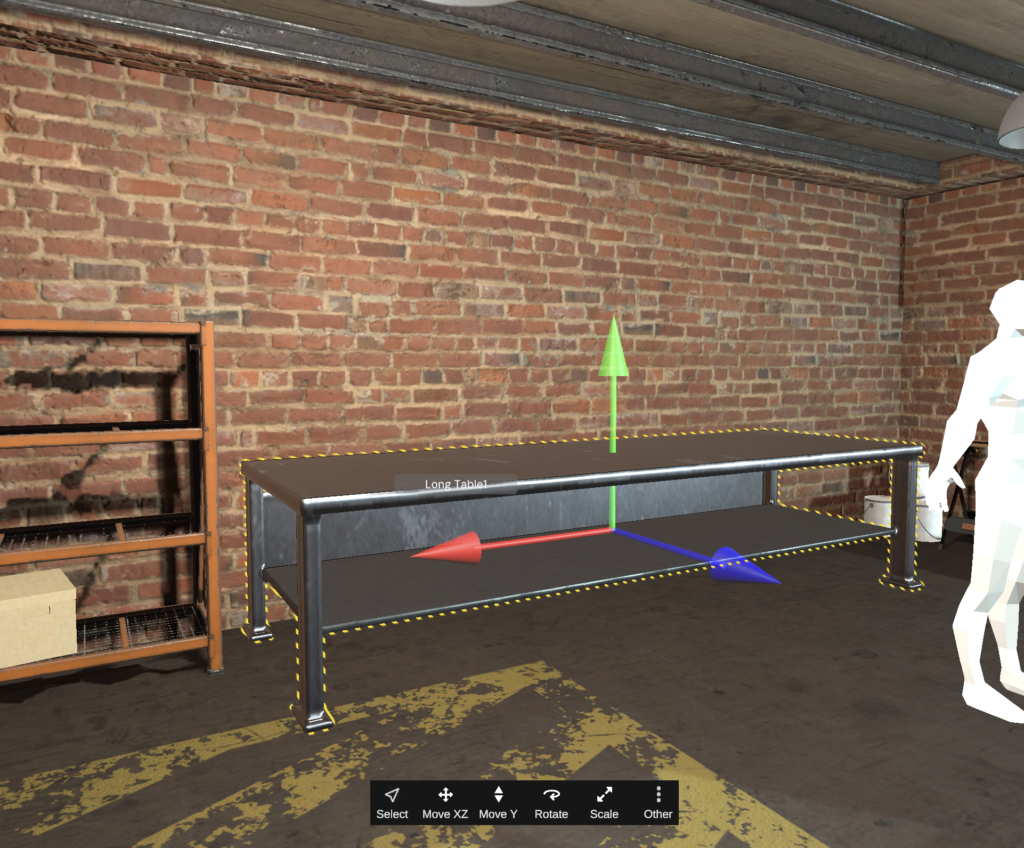
Upload, manage, and share 3D assets to create or enhance your own VR/AR experiences in HyperSkill.
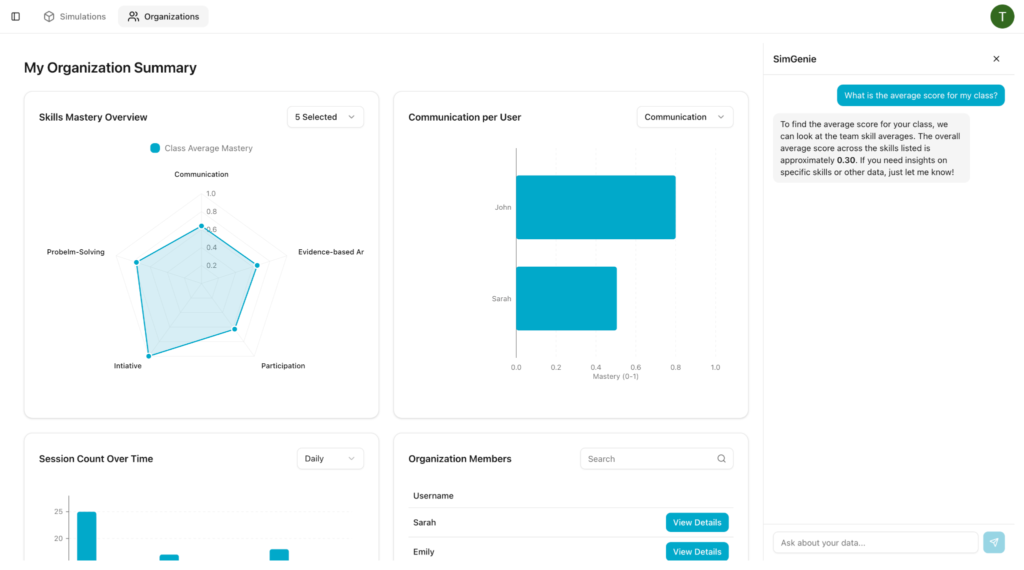
AI-Powered sims, MCQ, and Analytics
Let your students create their own simulations with simple prompts using SimGenie and track their progress in the HyperSkill Dashboard.